Wednesday, February 4, 2015

Change the direct station selection button on a telephone.

This is how to change a button on a phone from one extension to another. First from an internet explorer browser enter in your IP address of your system and click on telephone setting.


Login using your USER1 credentials.
Default user name is USER1 (all caps) and password (1111).


Click on the tools next to the extension you wish to change the buttons on.


Click on function Key assignment. The Function Key refers to the button numbers on the phone as you read from left to right and top to bottom.

Under the drop down menu under the function select 01 - DSS/One Touch of the button you wish to change.
The additional data will be the extension number you wish for the button to call.

Note: the line key name is only used on desi less phones. You probably do not have these.


www.rstechnologies.com

Thursday, June 26, 2014

How to adjust the volume on an NEC business phone.

Received a request for being able to change ringing volume without having to call in to the main number and ring all the phones or go to a separate phone and call the extension. To change your extension incoming ring tones:
1. Press Speaker.
2. Dial 720.
3. Dial 2 to set trunk (external) ring or 1 to set Intercom (internal) ring
4. Dial code for the desired ring pattern (1~8).
To Adjust the Ringer Volume

Press the Up/Down key during ringing.

Ensure the Ring is being adjusted by the display.


5. Press Speaker to hang up.

www.rstechnologies.com

Thursday, May 29, 2014

DND Do not Disturb From a display phone

Temporarily turn ringing off on your phone but still be able to make calls.

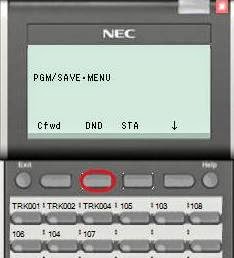
In the softkeys press the down arrow, Program, DND, Set, and All. It will display DND All in the screen. 

To Cancel press the down arrow, Program, DND,  and CNCL.


To cancel repeat the process except you would press CNCL in place of Set.


Wednesday, May 21, 2014

Change a name on the telephone display using webpro

When calling someone your name appears on their screen and theirs on yours. In addition to being annoying this may have adverse affects on dial by name features.

First logon. In your internet explorer browser by typing in the IP address of the system (USER1, 1111) User Admin Logon


Then get to the telephone set programming


After clicking on the tools icon next to the extension you would like to change the first thing that should come up is the Name Field.


Type the new name in the name field then, as always, click on apply, home and logout.


Tuesday, May 13, 2014

How to get to Telephone Setting Programming

This will get you to a point in your system where you can program an extension remotely. From here you will be able to change a great number of items related to each extension on your system. This is the launching point for changing things like the station name, buttons on the phone, station (individual) speed dials, voice mail options, and Personal Greetings (not the company greeting) upload and download.

First logon to User Admin Logon

Then click on Telephone Setting


If your extension number that you wish to change is in displayed move on to the next step. If not type the port number in the box in the top right hand corner (ie type 25 to see ports 25-48) then click on the magnifying glass icon. 

Note: The extensions may or may not be in order. 


Click on the Icon of the tools to the RIGHT of the extension number you wish to change.


This will take you to that extension numbers home screen. As mentioned before there are quite a few different options you can change from here and we will explore a few in other posts.


Thursday, May 8, 2014

Record and re-record Auto Attendant Greetings


1.       Press the VMsg soft key on a System Administrator’s phone, usually 101, and when prompted enter your security password.


2.       Use the dial pad to dial 72 for the System Administrator Menu.

3.       Press 4 or the Instr soft key.


4.       Enter mailbox number for the Day Greeting 001, Night Greeting 002, or Holiday Greeting 003 by using the dial pad.


5.       Follow the prompts to Lstn (Listen), Rec (Record), or Erase the greeting.


6.       To record, press the Rec soft key.
7.       When finished recording, press the # key or the Done soft key.
8.       Press the Lstn softkey to review.
9.       When finished Hang Up.


Download and upload company greetings in an NEC Inmail on an SV8100.

So this assumes that the day greeting is 001 and the night is 002. Pretty typical but you may have to adjust this if this is not the case on your system.

First Record your night greeting 002 as you normally would making sure you are not recording over the day Greeting. Please see other posts for instructions.

Then logon to the user admin page. Please see other posts for instructions.

Then click on InMail Audio Up/Down load (Routing)


Download Route 002 Greeting by clicking the download icon next to 002. This will download a wav file to your computer.

Note: Remember where you saved this file and name it something you will also remember. In the case of on all call doctor, for instance, you could name this file after the doctor. Also, you will want to keep these all in the same folder naming the folder night greetings for example remembering where this file is located. 


Once you have your file saved you can then upload said file anytime you wish by getting back to this Screen and entering 2 at the bottom of the screen in the routing mailbox, click on Choose file, select on the file in the folder and file name you chose earlier and test.


Please comment if you have any questions about this or anything related to using the SV8100

Monday, April 28, 2014

User Programming Mode


Thanks to Marcia from the Audubon society for this.  After making a program change always hit apply them home.  Making any change and then pressing the back arrow will lock up your phone.  All your phones will display programming mode. The only way to unlock your phones at this point will be to reset each phone by unplugging and replugging it in or resettting the phone system. 

www.rstechnologies.com

Monday, April 21, 2014

Redirect incoming call to an voicemail box using Caller ID

This program will use the caller ID to bypass all extension ringing and directly transfer a call to a certain extension. Very useful for callers who only want to speak to the same person, ever. Often used for personal calls.
Note: This does list callers number in the system wide speed dial directory and cannot be setup in personal speed dials (yet?).

From internet explorer enter your IP address of the system in a Web Browser. Login to NEC's WebPro as the user administrator default name USER1 All CAPS and default Password 1111.


Then click on speed dial name and number in the selections on the left side of the screen

You may wish to enter these at the end of the caller id speed dial bins which you can change in the top right hand corner. You have 2000 locations to enter speed dials so this is a matter of preference but you may enter the speed dial number and then the magnifying glass to jump to a specific bin or the right and left arrows will scroll through all the locations.

 Enter the number as it appears in Caller ID, enter a name, select internal dial from the, drop down menu, and enter the extension number that you wish the call to go to.

Click on Apply then Home and then Logout.

www.rstechnologies.com


Thursday, April 17, 2014

Desktop Suite Holiday Message Presence Scheduler

More Like Desktop SWEET!!!

So this is a really easy way to access this cool feature on NEC's SV8100 UC Desktop Suite. The following will allow me to schedule my phone to forward so a caller does not have to hear ring back only to find out I am not at my desk, it sets my presence indicator so the receptionist knows I am out of the office, it changes my greeting to a holiday greeting explaining that i will be limited in what voicemails I will return, and it will set all these settings back to normal so I don't forget to set them back Monday morning and sound like an idiot. It also saves these settings to next easter I can simply select "Easter". Also, I could add a location to let my office know where I will be. Notice THAT field is blank!!! Maybe I should have put Nunya. Keep in mind the phones are able to do this manually but if you have UC Desktop integrated with your deskphone you do this all from a GUI interface that has tons more cool features like this. Happy Easter!!!


If you wish to know how you can add this to your NEC SV8100 contact me.

Webpro User Administration Login

One of the most powerful aspects of the NEC SV8100 is the Webpro USER1 interface. If you are not using this as an end user to administer your business phone system you should start. It will save you money by doing simple tasks on your phone system yourself. You will be able to do things like move extensions, change names, change ringing, manage speed dials, and easily change voicemail options. Basicly administration of what you  don't want to do over the phone you can do on a GUI interface. Unfortunatly there is no swap feature as of yet so moving extensions are done with a different login. Ask your NEC Authorized Distributor for that password so you may move extensions yourself.

To get to the Adminstration Login Screen enter the IP address of your system in internet explorer. Yes you may use other browser but this one works best for this. I know Mozilla is the best browser ever made on the face of the earth but trust me.


Once this is entered you will be at the Login screen. The default name is USER1 (yes all CAPS) and the password is 1111 .


If you dont see this call your NEC Authorized Distributor and have them implement this immediatly! It is well worth a single service call to eliminate many more in the future! It will pay for itself with its next service call or lack there of. They can show you how to use it or stay tuned here for more tips. I am beginning to post at once a week.

Note to Technicians and Sales people: Remember those customer service representatives? If yes then I am guessing you are over 40. Now tech usually train the customer and the sales rep is off to the next sale. I am here to tell you that a sales person should be showing this to their customer and training them on it. We have sold every system where we were able to show this to the IT manager. Additionally it makes it easier to sell maintenance contracts and software assurance if you include phone support using this feature.

www.rstechnologies.com

Friday, November 15, 2013

NEC Corporation of America  has found it necessary to discontinue the ITL-8R-1 Dterm Cordless IP DECT (730097). The ITL-8R-1 is supported on the SV8100 series voice server by connecting to the IP Network. The ITL-8R-1 optional replacement item can be the NEC ML440 and AP20 wireless DECT IP solution.


Monday, September 16, 2013

SV8100 IP Phone Installation
Plug and Play Checklist

This document is for reference purposes only. Only Certified NEC Technicians working for an Authorized distributor with access to Tech Support should attempt to modify these settings. 
  1. First Change 10-12-09 to a static IP address on the network system. 10-12-01 should change to 0.0.0.0, 10-12-03 should be the gateway within the same subnet as the IPL in 09, and remember that these changes will require a system reset.
  2. Verify you have an IPL Card installed and Licensing for IP Phones in 5101 or 5111 under feature activation.
  3. Ensure you have extensions assigned in 11-02.
  4. Ensure your dhcp server is generating IP Addresses the same as the assignment in 10-12-09.
  5. Modify 10-16-04, 05, and 16 to the same address as 10-12-09.
  6. Verify that 10-46-01 is at Plug and Play and that 10-46-06 is port 5080. (default)
  7. Modify 84-26 IP’s to the same subnet as the IPL.
  8. These extensions will be issued in order as are in 11-02.
  9. Optionally you may enter the extension number to install a specific extension out of order by pressing HOLD, Transfer, *, #. User Name Admin, Password, 6633222. OK Press 1 for SIP User and 3 for extension number, Enter the extension you wish to install. Note this must be programmed in 11-02 as a usable extension. OK and Exit, Exit, Save. 

Thursday, September 5, 2013


NEC has released a cool cable for the Wireless Plantronics Headsets allowing a DT330 and DT730/750 terminals to answer simply by pushing your headset answer button. Instead of some massive contraption that lifts your handset while you are out of the room you can just press a button on your headset and the call will be answered for you. I know this seems like it should be pretty basic since cell phones already have this feature but it is a pretty big deal for a business phone system. Of course with the NEC you may utilize your cell phone if you wish.

Thursday, August 15, 2013

Revision 9

It is important to have a system that is constantly improving it's product. Software assurance allows you to keep up to date with the latest your system has to offer. I am going to talk only on the few enhancements that my clients may be interested in but if you wish to know more or would like to discuss Rev9 just let me know. 
SV8100 Upgrades R9


Web Pro Enhancement – Save / Restore
Finally you can use webpro to backup your system. The only reason I brought out PC Pro before was to backup. Clients did not see the benefit of buying PC pro just for that reason. It may mean that we lose a little revenue as a company or manufacturer but the benefit of allowing a administrator to backup their own system is priceless. There has also been some talk of the webpro now supporting Google Chrome but as far as I can tell this only applies to Unified communications and not webpro.

Virtual Machine support
NEC is expanding its shared services to support more VMware. More and more companies are using virtual machines, especially for secondary services such as the shared services from NEC. Who wants to buy a machine just to let you know if someone is on the line or not. I know shared services does more than that but that is the primary use our clients.

UC Desktop Version 6.1.0.0 or higher has been enhanced allowing Shared Services to support the virtual machine environments listed below.

Environment#1
Applications: UC Desktop Shared Services, version 6.1
Host: Windows 2012 Server, running VMWare Workstation 9
Virtual: Windows 7 (32-bit)

Environment #2
Applications: UC Desktop Shared Services, version 6.1
Host: Windows 2012 Server, running VMWare ESXI 5.1
Virtual: Windows 7 (32-bit)

Environment #3
Applications: UC Desktop Shared Services, version 6.1
Host: Windows Server 2008 R2 Enterprise, running Hyper-V6.1
Virtual: Windows 7 (32-bit and 64-bit)

Monday, April 29, 2013

Work in Progress

Still working on my first video. I know the one I have up is as boring and confusing as the rest of the training on youtube. I am going to enlist a professional radio voice  to do the audio instructions. For those of you who know me you know that is not as impressive as it sounds. Although she is a great talent she comes at a great price for me. See I married Kiki Garcia, maybe for her voice. Anyway, once I decide what video software to use, can't do much with movie maker, these should come much quicker. It's coming along.

Friday, April 26, 2013

What content would you like to see here and on youtube.

This site will be dedicated to the NEC SV8100 Phone system end user training and technical how to discussions. It is a great system and easy to use and has some amazing features. However, with the ability to to so many things it may not be apparent as to how to do some things. This will serve as a forum to any user who would like to ask how to do things like change the time for instance. Of course changing the time is just an example.

We will also explore what your NEC SV8100 system may be able to do that you are not aware of. Such things may be serving as a DHCP server, VOIP, SIP trunking, Doorphones, remote offices, home offices, etc...

As an NEC Authorized Distributor we can also get you in touch with a local NEC Technician no matter where you may be located if you simply wish to have someone else do it.

Keep in mind that I am working diligently to get user videos posted on my youtube channel at youtube.com/necphonetraining and is not a substitute for technical support.